
A long wait before the opening line usually adds nothing. A pause after a difficult question may be the point. Before editing, decide which kind of silence you have. This guide covers videos recorded as Lightshot takes; it does not promise an import-and-clean workflow for arbitrary videos from another camera app.
Which silences should you keep?
The short ones that let an example or an instruction land. Listen once without touching the controls. Note the empty beginning, the pause while you found your place and any long break before finishing. If the problem is a wrong sentence rather than a gap, follow the retake guide or use the editor’s transcript cutting after captions exist.
Baruch College’s speaking-rate guidance is about intelligibility, not the shortest possible runtime. The on-camera pace guide can help you decide whether removing another pause would make a dense explanation harder to follow.
How do you cut silences in Lightshot?
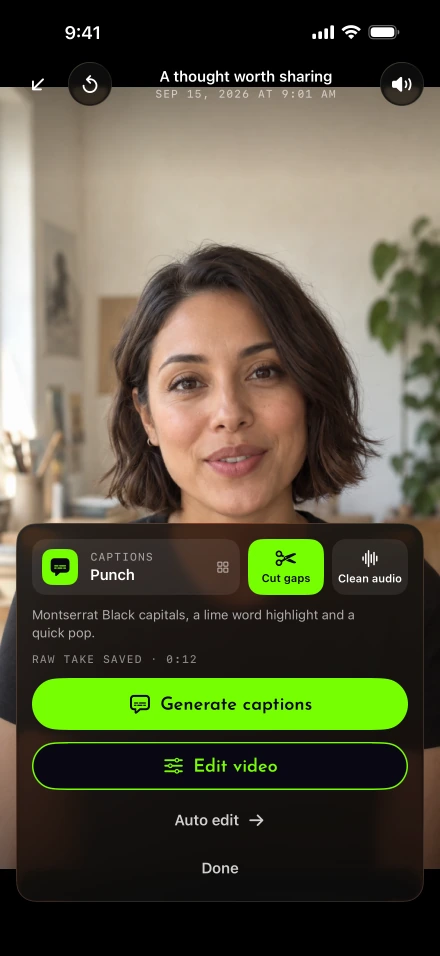
Tap Cut gaps in review, or keep Cut silences on and tap Auto edit.
Finish the recording and play the original on the review screen.
Choose Cut gaps when silence is the specific change you need.
For the broader one-tap edit, check Settings › Auto edit › Cut silences, then tap Auto edit in review.
Play the result, especially the beginning and end of each sentence. Open Edit video if the cut needs closer inspection.
Auto edit starts with your tap; it does not run after every recording by itself. Its silence detection compares loudness against the take’s noise floor, retains gaps shorter than 0.35 seconds and leaves a small margin around detected speech. Those are implementation choices, not proof that it always finds the right boundary.
Listen for the errors a waveform cannot explain
At each join, ask whether the first consonant is intact and whether the sentence ends naturally. Quiet speech can resemble background noise. A breath, laugh or pause for emphasis may be worth keeping even if a detector can remove it.
Do not use silence cutting as a substitute for a better microphone position. Apple explains recording input selection; our microphone help explains the app’s Mic control. Make a new sample if the original is too quiet to judge. Apple’s Voice Isolation documentation describes availability in certain recording apps; it has not been verified for Lightshot on a physical device.
If you need to redo the whole edit, remember that exports are built from the original take. Avoid deleting that take while deciding which version sounds right. The storage guide helps distinguish saved takes from expendable leftovers.
Check captions against the edited speech
Generate and inspect captions after choosing the take you want. Speech recognition runs on the iPhone; Apple describes the on-device SpeechTranscriber model. Device and language support still matter, so consult the available-language check if transcription is unavailable.
Read the first and last caption at each removed gap. Check names and numbers against the audio. W3C’s explanation of captions includes important non-speech information, so automatic spoken words alone are not a complete accessibility review. Do not let a dramatic caption style distract you from missing text.
Can you remove silences from a screen-recording demo?
Not in Lightshot: its demo takes intentionally skip silence cuts. Removing a quiet section could make the screen’s button press happen before its explanation. Improve a demo by adjusting the source recording or repeating its narration; the screen narration guide explains that timing problem.
Filler-word removal is a separate beta option and starts off. Keep it off while evaluating gap cuts so you know which operation changed the sentence. Finally, save the finished video and listen to the exported file with headphones. Publish the version whose message remains clear, even if it is a little longer.