
This is a prepared presentation workflow: the slides play from a saved movie while you speak. Lightshot is not controlling a live deck. The workflow follows the app’s supported demo-video inputs, but slide export through final narration has not been tested end to end on physical devices.
How do you make slides readable in a phone video?
Design for a small feed preview: fewer words, in larger type. Decide the video’s shape before designing the deck. A dense slide that works on a projector can be unreadable in a small feed preview. Enlarge the information the audience must actually read and remove notes that you will say aloud. Reserve a consistent blank area if your presenter bubble will occupy a corner.
A teaching presentation and a product walkthrough need different wording. The educator workflow focuses on explaining an idea; a launch video introduces a product. Do not force every slide into a feature announcement.
How do you turn a Keynote or PowerPoint deck into a video?
Export it as a movie: Keynote on iPhone has a Movie export, and PowerPoint has video export on Windows and Mac. In Keynote on iPhone, open the presentation, use the toolbar’s export action and choose Movie. Select the slide range, resolution and the delay between slides and builds. Apple’s Keynote export instructions say the result is a MOV file and can include the presentation’s audio. Check whether that audio should remain when you add new narration.
For PowerPoint on Windows, use File › Export › Create a Video and save an appropriate movie format. For PowerPoint on Mac, use File › Export and choose MP4 or MOV. Microsoft notes limitations with embedded media in the Mac movie export, so play the exported file rather than assuming every animation or clip survived.
Move the movie to Photos or Files on the recording iPhone. AirDrop is one transfer option between nearby Apple devices. Keep the editable deck too; timing changes are easier to make in its source than to explain around later.
Write narration that follows the slide sequence
For a task-based deck, Lightshot’s Product demo template supplies this outline in Scripts › + › Start from a template:
This is [what it's called], and in the next minute I'll show you how to [the task].
First, [step one].
Then [step two].
And finally, [step three].
That's it: [what the viewer has now].
[Where to try it.]
The template’s planning length is 90 seconds even though its opening says “in the next minute.” Change that wording to match your measured presentation. For an explanatory deck, replace the task outline with your own slide-by-slide script rather than pretending every lesson has three actions.
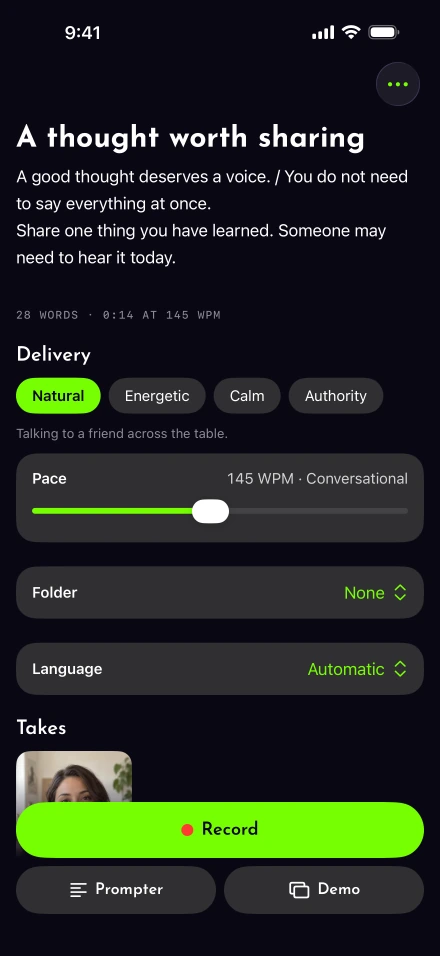
Use the script editor to prepare the spoken text. Estimate it with the timer, then play the movie and read aloud. The pace guide helps you budget space for a chart or equation. If a slide changes before you finish, adjust the exported timing or shorten the explanation.
How do you put yourself over the slides?
Load the exported movie as a demo take’s backdrop, then pick a presenter layout that leaves the slide text clear.
Choose Demo from the script and select the exported movie.
Trim to the required range, then choose Bubble, Split or Cutout. Check the first slide with the largest amount of important text.
Record a short section with the camera and audio setup you will use for the final presentation.
Review the result for legible slides, audible speech and correctly timed transitions. Complete the remaining narration only after that sample works.
The screen narration guide explains the same controls in more detail. If you overrun the movie, the final frame holds. That does not pause each earlier slide when you need extra time, so rehearsal remains necessary.
Keep the slide content visible through export
Place captions where they do not cover slide labels or the presenter’s mouth. DCMP’s text-placement guidance is useful for that decision. Verify every equation and unfamiliar term in the transcript, especially when the spoken explanation uses a different form from the slide label.
Demo takes keep Original resolution, skip silence cuts and zoom-at-cut edits, and do not replace the screen recording’s background. The editor’s Presenter controls can adjust the composition, but choose the source movie’s size deliberately. Follow export help and watch the saved file on a phone before distributing a deck whose text viewers must read.