
You know the product’s history, but a person encountering it today does not need the whole history before they understand it. Start with the job the product helps them complete. The founder recording workflow can support a short announcement, a demonstration or a follow-up answer; choose which one you are making before writing.
What should a founder launch video say?
Who it is for, the problem they keep running into, what the product does in one sentence, what is different and where to try it. In Scripts › + › Start from a template, Lightshot’s Launch video starts from this outline:
I'm [your name], and I built [what it's called].
[Who it's for] keep running into [the problem].
I know because [how you found the problem].
[What it's called] [what it does, in one sentence].
What's different is [what's different].
[Where to try it and what to do next.]
Answer with what you know now. If the product is a private beta, say how someone requests access. If a feature is still planned, do not describe it as available. Use the script editor to replace a template line that would otherwise force an unsupported claim.
Turn the promise into something observable
The problem line should name a task or frustration rather than claim everyone experiences it. The “how you found it” line can describe your own work or research honestly. Do not create an imaginary customer to make it sound validated.
Make the difference concrete: a required step removed, an input accepted or a workflow the product supports. Avoid unmeasured claims about time saved. If you mention an endorsement or a result, review the FTC’s endorsement guidance and retain evidence for the impression your statement creates.
This public launch outline is not appropriate for every application video. Y Combinator’s founder-video instructions call for founders talking from bullet points rather than reciting a script, and keep product demos separate. Follow the recipient’s instructions when the video is an application.
How do you check a launch video’s claims before recording?
Test every claim in the version a new buyer will get, before the camera is involved.
Put the current build beside the draft and underline every verb: imports, exports, connects, accepts, saves.
Do each of those actions with the account type your intended buyer will have, not your administrator account.
Qualify anything only an administrator can see, and cut any line that describes a mockup as working.
Separate availability from ambition. “Join the waitlist” describes a request for future access; “create an account” describes something the viewer should be able to do now. If access depends on an invitation, region or separate approval, put that condition near the invitation instead of leaving it for a later email. These distinctions make the announcement easier to evaluate without adding a long disclaimer.
Keep a small release checklist beside the final draft: the destination, the version shown, the eligibility conditions and who will respond to access requests. Before publication, open the destination outside your signed-in administrator session. A correct URL can still lead a new visitor to a closed permission screen.
Give the announcement one route to action
Choose one next step a viewer can complete on the destination where you publish. State what happens there: try a working product, request access or read the release notes. Avoid an invitation to “learn more” if the next page actually asks for payment without explanation.
Use the one-minute script method to trim side topics. Baruch College’s timing exercise can help you test your spoken pace. Put the draft through the script timer, then rehearse the product name and technical terms aloud.
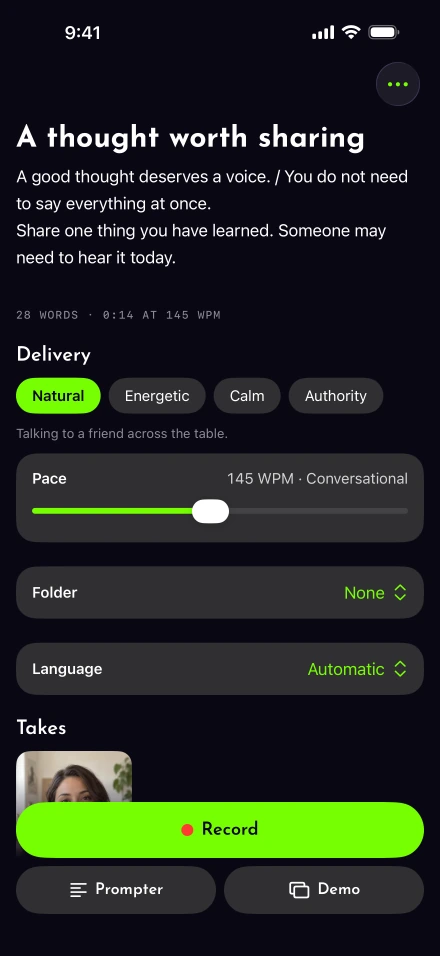
Should a launch video be a talking head or a product demo?
Talk to the camera when the idea is the news, and show one task on screen when the product makes more sense seen than described. For a talking introduction, use the camera setup checklist and record directly. Pause to redo a sentence if the product name or final instruction comes out wrong. You can show conviction without speeding through unfamiliar terms.
When the product makes more sense on screen, capture one task from beginning to end. Apple’s screen-recording instructions explain the first stage. Then follow the screen narration walkthrough to add your explanation and face in Demo mode.
Use an example account and clear private data before capturing. Show the actual result rather than a decorative screen. Keep the presenter away from the controls the viewer needs to see. Demo takes preserve the screen timing and skip silence cuts, so rehearse narration against the saved screen video.
Check the release before sharing the file
Watch the finished video as someone who has never heard the product name. Can they tell who it is for and what to do next? Verify that the stated destination works and that the named feature exists in the version they will receive.
Correct captions for your brand and domain. W3C’s caption explanation is a useful guide to the information viewers need when speech is unavailable. Keep a plain description in the accompanying post as well.
If the launch goes to LinkedIn, check the LinkedIn upload route and limits. Use the connected posting destinations only where the network is available in Settings › Connected accounts. Record a follow-up demonstration separately when it needs more explanation than the launch itself.