
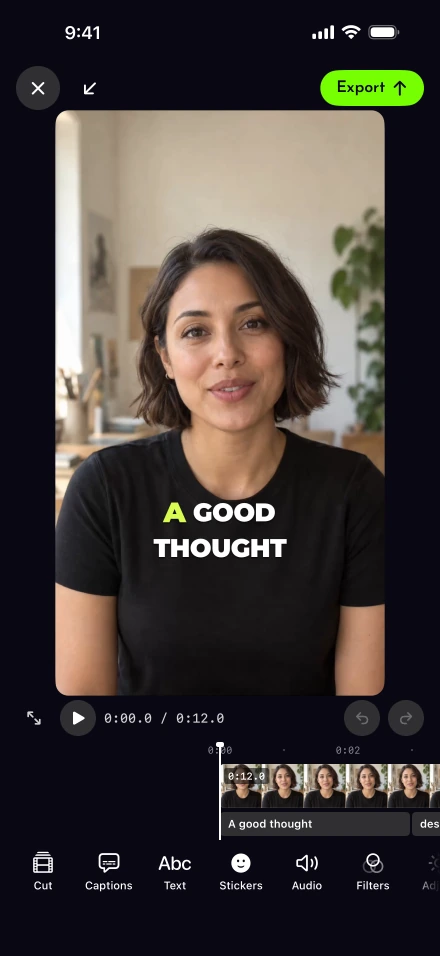
A face that sits comfortably in a wide frame can end up cropped at the shoulders in a vertical post. Export is where you decide what survives that change. Lightshot’s video workflow keeps the original take as the source and renders each finished version from it, rather than repeatedly exporting an already compressed edit.
How do you change a video’s aspect ratio?
Pick the shape in Canvas, then choose Fill to crop or Fit to keep the whole picture. In the editor’s Canvas tool, select Original, 9:16, 4:5, 1:1 or 16:9. Fill covers the chosen frame by cropping the source. Fit keeps the source visible and fills the remaining space with blur, black or white. Use Fit when a slide, sign or product at the edge matters more than filling the whole screen.
| Shape | Review question |
|---|---|
| 9:16 | Are the face, hands and key object still inside the narrow frame? |
| 4:5 | Does the feed crop leave space for your caption text? |
| 1:1 | Does the square include the visual detail supporting the sentence? |
| 16:9 | Is the wider composition useful, rather than empty space beside a small face? |
Destination labels are starting points, not acceptance guarantees. YouTube adapts its player to the uploaded aspect ratio, while square or vertical uploads up to three minutes can be classified as Shorts. For professional-feed material, check the LinkedIn format guide alongside LinkedIn’s member upload requirements; direct API posting uses a different set of limits.
Can you export one edit in several shapes?
Yes, as separate files made from the same edit. Also export as can create 9:16, 4:5, 1:1 and 16:9 files beside the edit. For ordinary takes, each extra version follows sampled face positions, with a steady centered crop when no face is found. Demo versions crop the screen recording from the center instead of following the presenter. This is face framing, so it does not know that a house number, product label or demonstration hand is the subject of your sentence.
Watch those details deliberately. A property introduction may need the room as well as the speaker; a product explanation may need the object held at waist level. You can avoid some crop problems earlier by leaving space when recording the source.
Ca Lightshot export in 4K or 8K?
Yes, where your iPhone’s encoder accepts the size; the export menu offers only the sizes yours can make. Original keeps the base output size, and 1080p reduces a larger recording without enlarging a smaller one. Enlarging uses on-device super resolution when available, with a standard resize fallback if the model or available memory cannot support it. Upscaling is a rendering choice; it does not turn soft capture or missed focus into newly recorded detail.
For direct Instagram uploads, Meta’s Reels API documentation specifies a maximum width of 1,920 pixels. A large master therefore may need a smaller export for that route. Apple’s HEVC compatibility guidance is useful when an otherwise valid movie behaves differently after transfer. Our export and sharing help separates file preparation from handing it to another app.
Inspect quality changes in the saved output
Enhance, Reduce noise, Remove flicker and supported Smooth motion changes are applied during export. They are not represented by the live editing preview. Smooth motion only affects pieces slowed below normal speed, and its availability depends on the iPhone.
Screen-recording demo takes keep Original resolution. Their extra shapes crop the screen recording, so inspect slide text and interface controls near the edges. Select the main video in the timeline to reach Quality controls; judge those changes in the saved output.
Can you leave the app while a video exports?
Yes, once the export screen says you can switch apps, though some effects need Lightshot open on iPhones without background graphics support. Lightshot keeps rendering on your iPhone using the background time iOS grants. Allow notifications and enable Settings › Notifications › Video exports to receive Your video is ready after the finished file is saved. Tap the notice to open the take.
Ordinary exports at Original or 1080p can use this route without background graphics support. Quality tools, 4K or 8K upscaling, background replacement, text behind the speaker and demo cutouts need the app open when that hardware support is unavailable. iOS can also decline or interrupt background work. Follow the export screen’s message, and use Export again if an export stops. Force-quitting the app ends the work.
Check every file before it leaves the phone
Read the captions in each shape and watch for text too near the edge. Listen across repaired sections after an automatic first cut, then check the ending has not lost its final word. Multiple output files also need room in iPhone storage.
Use Save to Photos for a copy or Share to hand the movie to a destination app. Share warnings are advisory and include a Fix action. Direct posting and scheduling perform their own checks before uploading and depend on connected-account availability. Lightshot adds no watermark; the final review is about the frame, sound and words your audience will receive.