
A second screen is useful when your camera position makes its own text hard to read. It can sit close to the lens or inside a glass prompter rig. This two-iPhone mode uses nearby devices, so it is not a way to operate a distant presenter over the internet.
Give each phone one job
Choose which iPhone will capture the picture and sound, and mount it for the required framing. Place the other where you can read comfortably. Both run Lightshot’s iPhone app; check the iPhone and iOS requirements before relying on an older spare phone.
The camera phone keeps the take. The prompter phone displays the script and listens with its own microphone for voice-following. That distinction matters if the prompter is far away or partly enclosed by a rig. A good recording microphone on the camera phone does not guarantee clear speech at the other phone.
Apple’s Multipeer Connectivity documentation describes nearby communication over Wi-Fi and Bluetooth. Lightshot requires encryption for its link and sends the script directly between devices. The privacy policy explains the separate account and posting services.
How do you link two iPhones for prompting?
Open the prompter on one phone, link to it from the camera phone, and check that both show the same code.
Open a script on the second iPhone and choose Prompter or Prompter only.
Enter the recorder on the camera iPhone. Tap its Prompter pill to link to the nearby prompter.
Allow local-network access when iOS requests it. The first time, both phones show the same 6-digit code. On the prompter phone, tap Allow under Let [phone] control this prompter? only if the codes match, then tap Pair on the camera phone.
Rehearse several sentences. Pause on purpose and confirm that the prompter’s position makes sense before starting a valuable take.
Later links between the same two phones skip the code. Unlink, on the camera phone’s Prompter sheet, makes both phones forget each other, so the next link asks for the code again. Apple’s local-network permission guide explains why an app asks to find nearby devices. If pairing fails, use the pairing troubleshooting steps and check permissions on both phones. Only one camera can drive the prompter at a time.
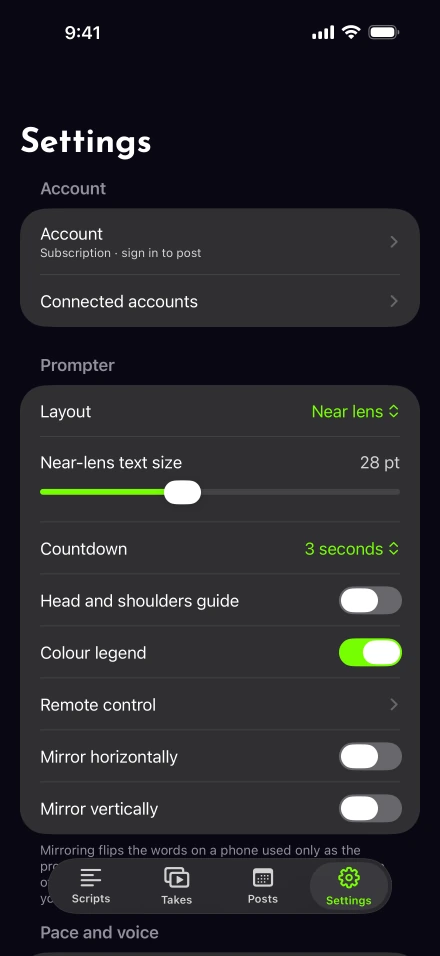
Which mirror setting does a glass teleprompter need?
It depends on which way the prompter phone’s screen faces. A glass rig reflects the second phone’s words toward you while the camera looks through the glass. On the prompter phone, turn on Mirror horizontally when the top of its screen faces away from you, or Mirror vertically when the top faces you. Turning on both sets the words upside down, for a phone mounted that way. Read a word with an obvious direction before you record.
This control flips the prompter-only text. It is separate from the camera’s saved-video mirroring setting. If you are placing the spare phone beside the lens without glass, you may not need text mirroring at all. The eyeline placement test will show whether the screen is too far to one side.
Test speech and controls in their final positions
Say a paragraph at normal volume with the rig fully assembled. Voice-following depends on recognized words, and language availability is device-specific. Apple’s SpeechTranscriber session explains its on-device approach; a first-use language download can still be necessary.
If you want hands-free controls, follow the remote setup guide. Apple’s Bluetooth pairing instructions cover the accessory connection, but they are not evidence that a particular pedal has been tested with Lightshot. Rehearse every assigned action before filming.
What happens if the two iPhones disconnect?
The link is designed to reconnect and synchronize the script position. If the display falls behind, pause, wait for the connection and verify the next sentence yourself. No physical-device reliability results are published yet. Use a sentence redo if you spoke while the display was wrong.
Check available storage on the camera iPhone before a long session; adding a second phone does not move the captured video onto it. Once the rehearsal is sound, apply the usual recording settings and finish with a short playback of both picture and audio.