
Moving a hand toward the phone can break the delivery just when you need a correction. A pedal can leave both hands in the frame; a page turner can stay out of view. Lightshot lets the input do a chosen job, rather than assuming every remote button should only start recording. These mappings belong to the same recorder and prompter tools you use on screen.
Can you control a teleprompter from Apple Watch?
Yes. Lightshot’s Apple Watch companion has six buttons: record or pause, redo the last sentence (while paused), finish, sentence back, hold the script and sentence forward. It shows the script title and take progress. It needs watchOS 26 or later and the paired iPhone nearby with its recorder open. There’s no delete button, and it isn’t a standalone studio.
Open a script’s recorder on the paired iPhone first, then open Lightshot on the watch; the iPhone does the filming. Tap Record or Pause on the watch. While paused, redo the last sentence; finish when the take is ready. You can also hold or carry on the script and step backward or forward a sentence during a take. If the watch says Answer on your iPhone, close the sheet or answer the recorder’s question there before using the remote again. These are fixed watch controls; Bluetooth button mappings are configured separately below.
Which remotes and foot pedals work with Lightshot?
Accessories that send standard keyboard keys, shutter remotes and the iPhone’s own volume buttons; no named model has been tested yet. Page turners and foot pedals work by sending keyboard events such as arrows, Page Up, Page Down, Space and Return. Shutter-style remotes and the phone’s volume buttons use camera capture events while the camera is on. Apple’s capture-event interface explains that separate hardware-button route; it does not certify a particular remote for Lightshot.
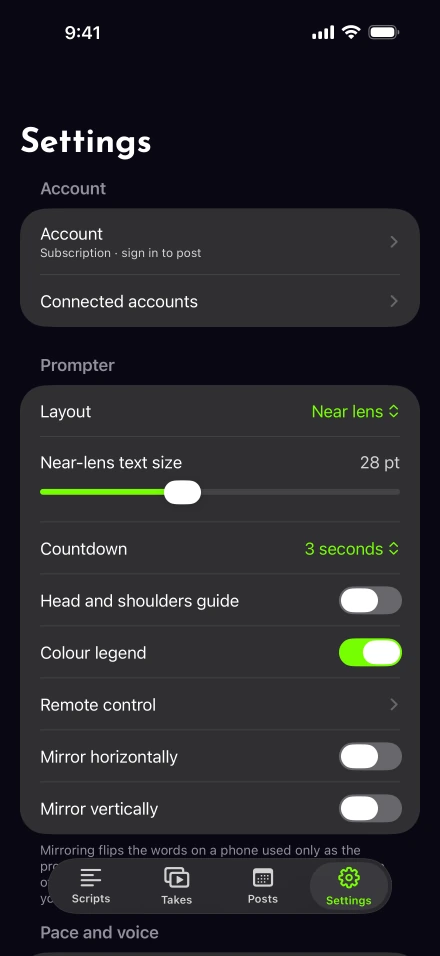
Pair a Bluetooth accessory in iPhone Settings using Apple’s connection instructions. Then open Settings › Prompter › Remote control. Press a button while Press a button on your remote is displayed. If the live test does not react, start with the remote troubleshooting checks before filming.
What can a remote button do in Lightshot?
Any of nine actions, or Nothing, chosen per button, so map the one you can find by feel to the action you use most. Choose an action for each supported input: Record / pause, Redo last sentence, Delete last part, Finish, Hold / carry on the script, Back a sentence, Forward a sentence, Faster (auto pace), Slower (auto pace) or Nothing. Leave unused keys on Nothing if accidental presses would interrupt your take.
The defaults map Right arrow, Page Down, Space and both volume buttons to Record / pause. Left arrow and Page Up redo the previous sentence; Down arrow removes the last part; Return finishes. Up arrow does nothing. Reset to defaults restores these assignments. Our remote setup guide shows how to test a small mapping before adding more commands.
Decide whether to stop the camera or the words
Use Record / pause when the recorded take should stop. Redo and Delete pause first if you trigger them while rolling, then remove the relevant footage. The retake page explains how a sentence boundary differs from the last pause.
Hold leaves the camera recording and stops only the text. That can be useful for an aside or a demonstration where your words are temporarily unplanned. Sentence steps move the script without stopping the take. With voice-following, rehearse how you will return to the lit word after a manual change.
Change pace only when pace is the control
Faster and Slower change auto pace in 10-WPM steps within the supported 60–240-WPM range. They are for the timed reading mode. A voice-led take uses a coaching target and your spoken progress instead, so changing a number is not a cure for every listening problem.
Baruch College’s speaking-rate exercise starts with measuring speech rather than chasing a display. The camera pace guide applies that idea to your script. If the words are hard to say, edit the phrasing in Scripts before building a complicated button routine around it.
Rehearse at the actual camera distance
Mount the phone, stand where you will speak and run a short recording test. Check one press for pause, one for resume and one for the repair action. Watch the saved sample for movement or unwanted button sounds. Northwestern’s recording guidance supports a stable camera setup, which makes changes between parts easier to judge.
For a second iPhone used as the prompter, include both devices in that rehearsal. Confirm the recording and listening inputs too; Apple’s microphone selection guidance explains where input choices appear on iPhone. A working remote cannot fix an input that does not hear you.
No named remote or pedal has completed the app’s physical-device test matrix yet. Treat the live button test and a saved sample as your compatibility checks, and contact support with the accessory and key behavior if an input does not respond as expected.